
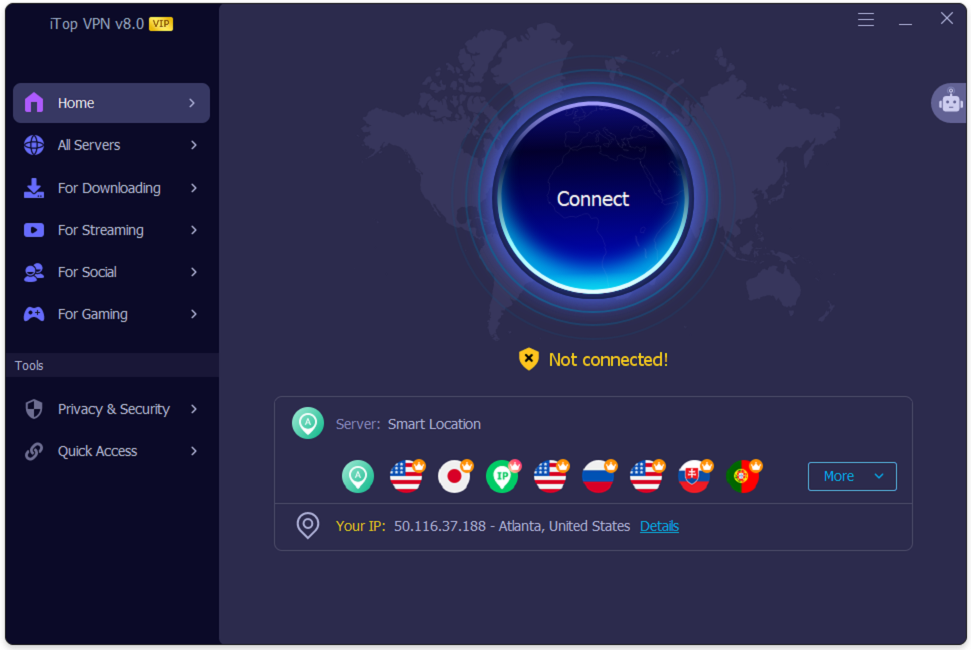
Installing a VPN is usually the easy part. The next screen can feel less obvious. You see Smart Location, server lists, and several connection choices. Maybe you only want privacy or a different IP address. So, how do you connect to a VPN server with iTop VPN correctly?
How Do You Connect to a VPN Server with iTop VPN?
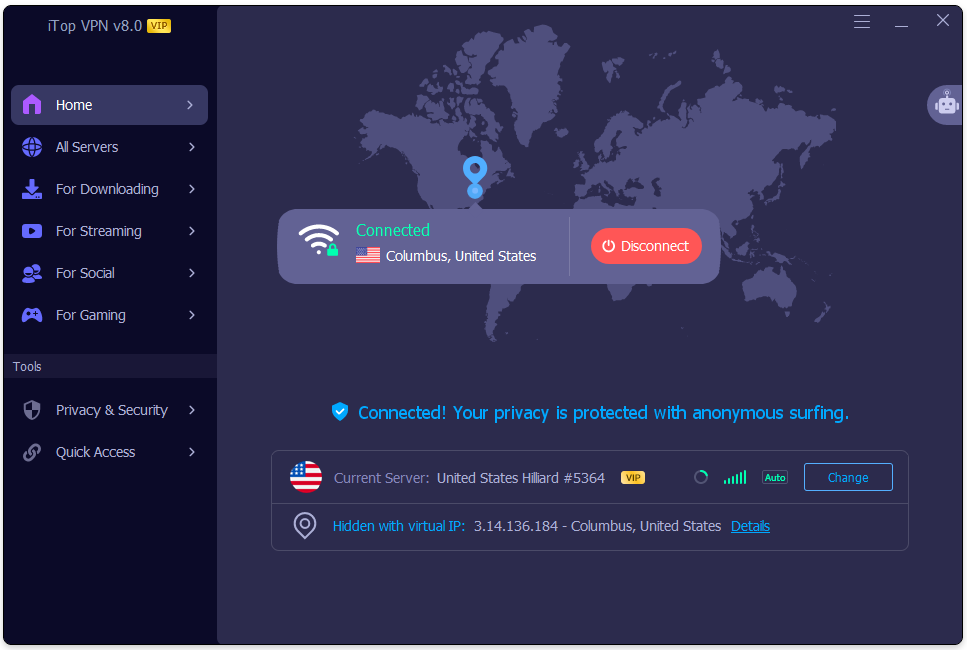
To connect to a VPN server with iTop VPN, open the Windows app. Choose Smart Location or select a country under All Servers. Press Connect, then wait for the Connected message. Check the displayed IP before browsing. You can change servers or disconnect later. The right server choice can improve speed and responsiveness.
What You Need Before Connecting to an iTop VPN Server
A smooth connection starts before you press the button. First, check that your normal internet connection already works. Then install iTop VPN from the official Windows page. Decide whether speed, privacy or another server location matters most. That quick check prevents basic network trouble from looking like a VPN problem.
- Confirm normal browsing works before starting VPN software.
- Install the latest Windows version from the official source.
- Choose Smart Location when a specific country doesn’t matter.
- Open All Servers when a particular location matters.
- Know whether speed, privacy or location matters most.
- Sign in when your chosen feature requires account access.
You can get iTop VPN directly from the official Windows page.
How to Connect to a VPN Server with iTop VPN in 4 Steps
You don’t need to create a manual Windows VPN profile. iTop handles the connection inside its own application. Once installed, you can accept an automatic recommendation or browse locations yourself.
- Download and open iTop VPN: Install the Windows application.
- Choose your server: Select Smart Location or open All Servers.
- Press Connect: Wait until the app displays Connected.
- Check your connection: Review the server and current IP details.
The current Windows manual confirms this one-click connection process. It also lists Connect Assistant when you need help choosing.
How to Choose the Best iTop VPN Server
The right server depends on what you plan to do. Nearby locations often feel more responsive. Specific countries matter when you need another visible location.
Use Smart Location for a Faster Automatic Choice
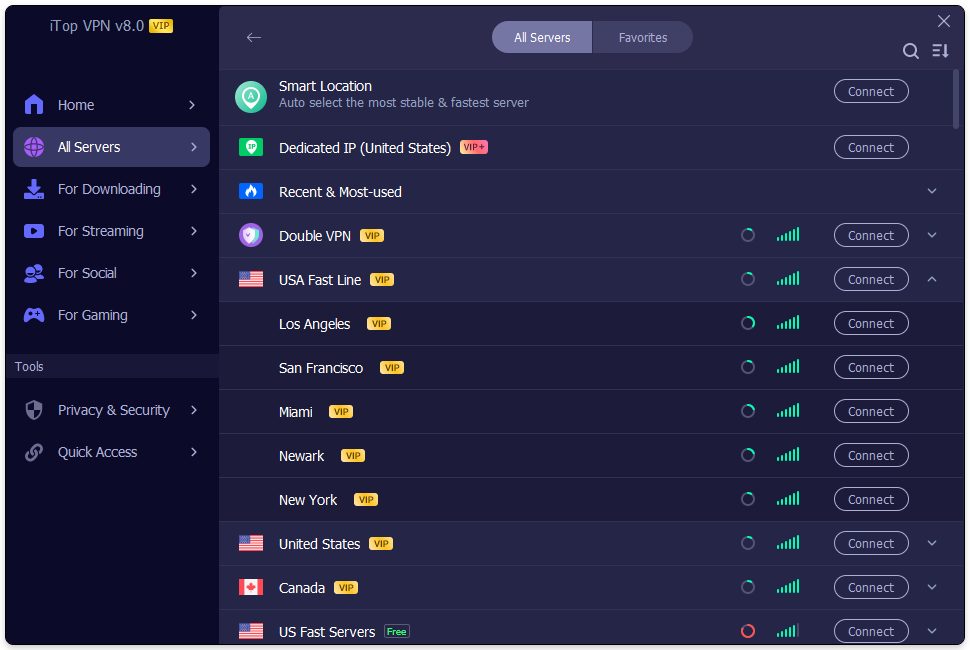
Smart Location suits people who just want to connect quickly. The app recommends a server without making you compare every location. That can save time during everyday browsing or quick privacy checks. If speed matters most, start here before trying distant locations. Server distance can affect latency because traffic travels farther. Connect Assistant can also help when you’re unsure where to begin.
Choose a Specific VPN Server Location Manually
Manual selection makes sense when location matters more than convenience. Open All Servers and search for the country you want. You can sort servers by recommendation, name, distance or latency. Favorites keep regular locations close at hand. For example, travelers can save frequently used regions for quicker access. That small shortcut can save time when you switch regions often.
How to Check and Change Your iTop VPN Connection
Connecting is only half the job. Check the app before opening important websites. A Connected message should appear after the VPN starts. You can also open IP details and compare your address before browsing. If performance feels slow, switch locations and test again.
- Check the Connected status inside the app.
- Review the displayed server and IP information.
- Select Change when you want another server.
- Open Favorites for locations you use regularly.
- Click Disconnect after finishing your VPN session.
How to Improve iTop VPN Speed and Server Choice
Server distance can change how responsive your connection feels. Nearby servers usually send traffic along a shorter route. Distant locations may add latency during browsing or gaming. Start close unless you genuinely need another country. iTop’s own latency guide also recommends choosing nearby servers. Pick nearby servers for everyday browsing.
- Compare latency before settling on one location.
- Avoid judging performance from one quick speed test.
- Try another server when one feels unusually slow.
- Save reliable locations inside Favorites for later use.
Pros and Cons of Connecting Through iTop VPN
iTop keeps basic server connections fairly simple for beginners. Smart Location reduces guesswork while manual selection adds more control. Still, server distance and account type can change your experience.
Pros
- One-click connection keeps setup straightforward.
- Smart Location simplifies automatic server choice.
- Manual selection gives you location control.
- IP details make connection checking easier.
Cons
- Distant servers can increase connection latency.
- Some servers require VIP account access.
- Encryption may slightly affect connection speed.
- A VPN cannot repair weak internet service.
The official manual marks some servers and features as VIP-only.
What to Do if iTop VPN Will Not Connect
Connection problems often have simple causes. First, test your internet without the VPN. If ordinary websites fail too, fix that connection first. When normal browsing works, restart iTop and try another server. Firewall settings may also interfere with certain VPN connections.
- Check your normal internet connection first.
- Restart iTop VPN, then reconnect again.
- Try a different nearby VPN server.
- Review firewall or security software settings.
- Update the VPN when a newer version appears.
Microsoft also recommends checking VPN status and connection settings during Windows troubleshooting.
Ready to Connect to the Right iTop VPN Server?
Connecting to the right iTop VPN server doesn’t need technical knowledge. Start with Smart Location when you want a quick choice.
Pick another country when location matters more. After connecting, check your IP and test normal browsing. If speed feels slow, switch servers and compare again. That small check can save frustration later. Want a smoother daily setup? Save reliable servers to Favorites and keep one nearby option ready.
With a few simple habits, iTop VPN becomes easier to use confidently. Choose the server that fits your goal, confirm the connection, and browse with fewer surprises.

1 Comment
Pingback: moxhit4.6.1 Software Testing: A Complete Guide to Quality, Reliability, and Verification - Lyncconfs